HighRadius Configurations
The Add Integration window allows you to provide the ERP Integration details for Microsoft Business Central (BC).
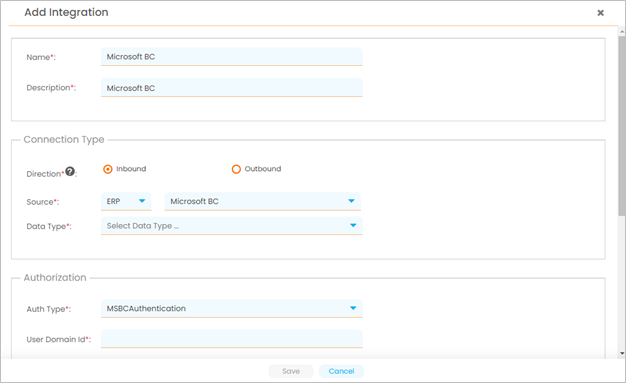
To add the HighRadius configurations for Microsoft BC, follow these steps:
-
Provide Name and Description.
-
Select if it must be an Inbound or Outbound integration, by clicking the corresponding radio button.
-
Select Microsoft BC from the Source drop-down list.
-
Select the required Data Type from the drop-down list.
MSBC Authentication is auto selected in the Auth Type field.
-
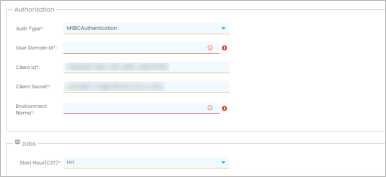
Provide the Client ID and Client Secret. Refer to ERP Enablement for more details.

Note
The User Domain ID value corresponds to your Tenant ID value.
-
Configure the cron as required.

-
Provide email ID(s) to receive job status notifications.
-
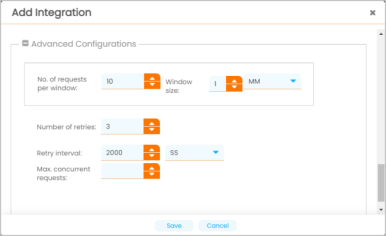
Configure the details in the Advanced Configurations and click Save.
Note
Modify the Advanced Configurations only if required.
For more details on the fields displayed in the Advanced Configurations panel, refer to the following table:
Field
Description
No. of request per window Displays the number of requests allowed per time frame, that is, the window size. Window size Displays the time frame of the requests. For example, only 10 requests are allowed per minute. Number of retries Displays the number of times the request is resubmitted if case failure. Retry interval Displays the interval between the retries. For example, 3 retries with 2000 seconds retry interval. Max concurrent request To be implemented.
Once the integration is created, you can modify the integration settings. For more details, refer to Editing ERP Integration Settings.